
Measure
Overview
The Measure control lets you see how a place is changing over time, not just how big it is. With one switch you turn a chart and its table from the total each year into the change over a time span you choose, shown either as a plain count or as a growth rate.
Where to find it: the Measure button sits in the control bar at the top of the page, next to Filter, on the population, dwelling, housing and rate pages. The button shows the current measure, for example "Measure: Total" or "Measure: Change, every year".
Opening the Measure menu
Click the Measure button to open the menu. It starts on Total, the value each year. Choose Change to switch the whole page to the change over time: the total chart, the breakdown, and the data table all move together.

The Measure menu opens with Total and Change
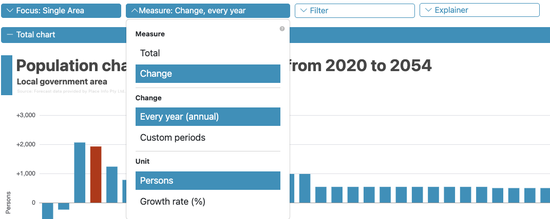
Change selected, with the Change and Unit options
Total or Change
When you choose Change, two more choices appear. The Change options set what the change is measured over: Every year shows the one-year change into each year, and Custom periods measures across spans you set yourself. The Unit options set how the change is expressed: a plain count (Persons, Dwellings, and so on) or a growth rate.
Setting custom periods
In Custom periods, each period has its own range on a slider. Drag a handle to adjust it, or use Add period to stack more (they may overlap). The quick buttons do the work for you: Every 5 and Every 10 lay consecutive periods of that length, Full period spans the whole forecast, and None clears them.
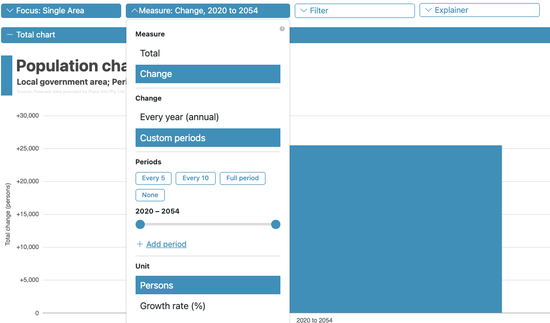
The Periods picker, with quick buttons and sliders
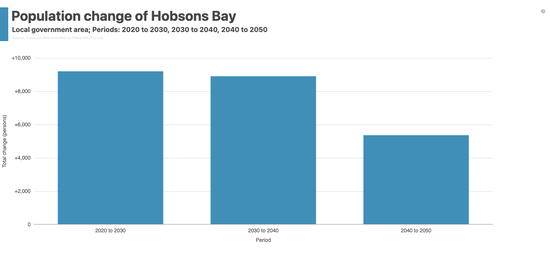
Change over three ten-year periods, one bar per period
How change looks on the chart
In Change, the chart draws a signed bar for each period (or each year), read against a zero line: above the line is growth, below it is decline. The data table gains a column for every period, so the numbers on screen always match the picture.
Count or growth rate
Leave the unit as a plain count to see the size of the change, or switch to a growth rate: the steady yearly percentage that would produce the same total change. The count tells you how big the change is; the rate tells you its pace, and puts a small area and a large one on the same footing.
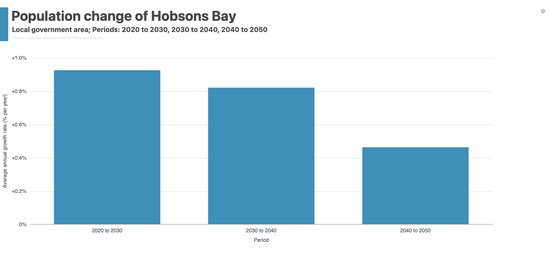
The same three periods shown as a growth rate
Ratio and rate pages show a plain difference
On the pages whose measure is already a ratio, average household size, and the rate pages such as fertility and mortality, Change is the plain difference in the page’s own unit, and there is no growth-rate option. A percentage growth rate of a ratio would mislead, so those pages simply show how much the ratio moved.
Keeping the measure across pages, and resetting it
Tick Keep measure across pages at the foot of the Measure menu and the same measure follows you to every other page that has a Measure control. It applies straight away. While it is on, the Measure button carries a small mark in the form of a pin, so you can see it is being kept without opening the menu. A link that names a measure always shows what the link says instead.
Click Reset, at the very foot of the menu, to put the control back to how it started: Total, the plain count, one period spanning the whole forecast, and no longer kept across pages. Choose Change after a reset and it opens on Every year (annual) again.
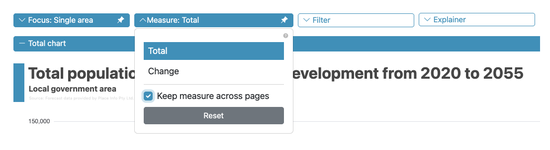
The mark on the Measure button, and Reset at the foot of the menu
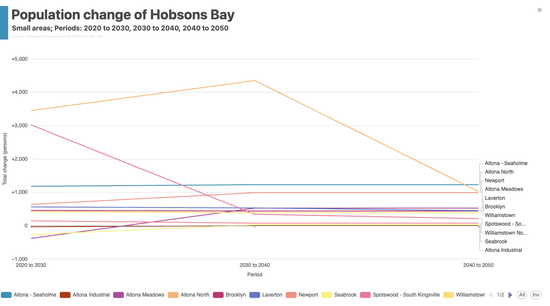
A comparison page: one line per small area across the periods
On comparison pages
On a comparison page, where every small area is shown at once, Change draws each area as a line across your chosen periods, labelled at the line’s end (a single period draws one bar per area instead). In one view you can see which parts of the LGA are pulling the total up and which are easing it down.
Example: see each suburb’s ten-year growth
- Open a comparison page (choose Compare Small Areas in the Focus menu)
- Open Measure and choose Change, then Custom periods
- Click Every 10 to lay ten-year periods
- Switch the Unit to Growth rate
Each small area becomes a line, so you can see whose growth is speeding up and whose is easing off, decade by decade.
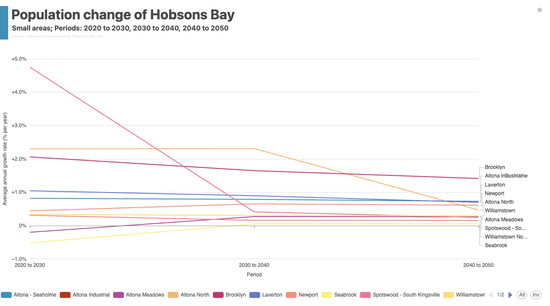
Each small area's growth rate across the periods
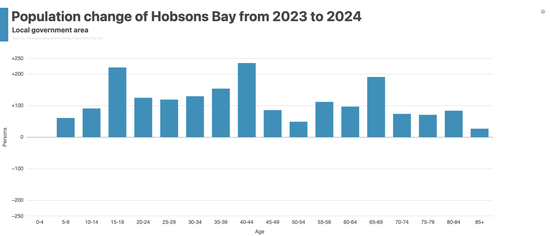
Population change broken down by age group
Example: find which age groups are driving change
- Open the Population page and choose Change under Measure
- Leave it on Every year
- Read the detail chart below the total chart
The detail chart breaks the change down by age, so you can see which age groups are adding to the population and which are shrinking.
Example: measure growth across your own time spans
- Choose Change, then Custom periods
- Drag the slider to your first span (say 2026 to 2031), then Add period for the next
- Read each period’s bar, or add the growth-rate unit to compare their pace
Custom periods let you line up the spans that matter to your planning, rather than only whole years.
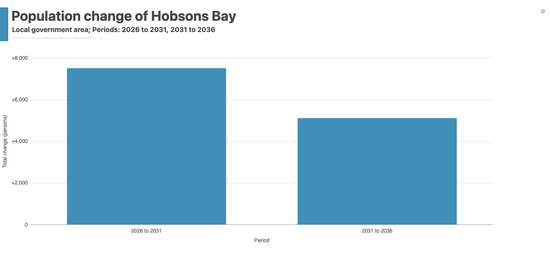
Change measured across two custom periods
Things to know
- The count shows the size of a change; the growth rate shows its pace. Ratio and rate pages show the plain difference only.
- The Measure control changes both the chart and the data table, and your choice is kept in the page link, so you can share the exact view.