
Forecast Access
Always up to date — when you need it
Place Info keeps your forecasts current. As soon as new data becomes available — from ERP systems, births and deaths, building approvals, and more — your forecasts are refreshed within days. You can always work with the latest information and make confident, well-informed decisions.
We are the only forecast provider that does this.
Of course, there are times when you need stability. Frequent updates — roughly a dozen times a year from new data releases, plus additional updates from council assumption changes like small area adjustments or dwelling and housing assumptions — can shift numbers and disrupt plans mid-project.
That's why there are now two forecast states:
- Pending: continuously updated with every new dataset and assumption
- Active: fixed and stable for planning and communication
You decide when to activate the new forecast — whenever you're ready to move to the latest data.
How it works
Your active forecast remains unchanged until you choose to update it. Meanwhile, the pending forecast stays current with all the latest data releases: ERP, births, deaths, building approvals, and more.
This gives you the best of both worlds: stability when you need it, currency when you want it.
Understanding forecast series
Behind the scenes, Place Forecast groups forecasts together into a forecast series. This grouping lets you manage user access once for the whole series, rather than separately for each forecast state.
When you grant someone access to a forecast, they automatically get access to all forecasts in that series. User access and roles stay consistent as you move a forecast from pending to active, or when you create the next update.
For example, if you give five team members access to a pending Hobsons Bay forecast, those same five people automatically have access when you change it to active, and when you create the next pending version. All forecasts for that scenario share the same series.
Different scenarios for the same area, like "Hobsons Bay (Main)" and "Hobsons Bay (Growth)", are in separate series with independent user access.
Access types for different needs
Some councils base their plans on forecasts that are only internally accessible. With a public forecast, community members can see the underlying numbers for council plans straight away.
Different user roles (forecast users, champions, and sponsors) allow team members to handle these forecast states based on their responsibilities.
Forecast States: Latest Data vs Stable Planning
Think of forecast states as labels that control who can see your forecast and what data it contains. Pending forecasts get data updates. Active forecasts are fixed for reliable planning.
| State | What It Means | Who Can See It | Example Use |
|---|---|---|---|
| Internal Pending | Latest data with regular updates from Place Info and changes to council assumptions | Sponsors and Champions | Continuously updated with newest ERP, births, deaths data, etc. plus multiple council assumption updates with small area changes and changes to housing and dwelling assumptions |
| Internal Active | Stable forecast for planning (no automatic updates) | Sponsors, Champions, and Forecast Users | Locked forecast we're using for structure planning |
| Public Active | Published stable forecast (no automatic updates) | Anyone, including the public | Official population forecast supporting our published strategy |
Badges
PlaceForecast uses colour-coded badges visible on every page of the forecast, right under the menu bar, to help you quickly identify forecast states:
Internal Pending:

Internal Active:

Public Active:

User Roles: Three Levels of Responsibility
Your role determines which forecasts you can see and what you can do. You can view your user role on your profile page.
| User Role | What You Can Do | Who Has This Role | When You Get Notified |
|---|---|---|---|
| Forecast User | See active forecasts only, use charts and export data | Council staff working with demographic data for planning | When a forecast become active |
| Champion | See all forecasts (including pending) | Users who need rapid access to latest data and work on assumptions with sponsor | When a forecast becomes active and when a pending forecast receives an update |
| Sponsor | See all forecasts (including pending), manage team roles | Contract holder with Place Info who decides forecast direction | Same as champion |
Visual Overview: How States and Roles Work Together
Have a look at how states and roles work together. Each role builds upon the next.
*Requires your council to have set up access for you
**Sponsors can manage team roles
| Your Role ↓ / Forecast State → | Internal Pending* | Internal Active* | Public Active |
|---|---|---|---|
| No role (public user) | ❌ No | ❌ No | ✅ Yes |
| Forecast User | ❌ No | ✅ Yes | ✅ Yes |
| Champion | ✅ Yes | ✅ Yes | ✅ Yes |
| Sponsor** | ✅ Yes | ✅ Yes | ✅ Yes |
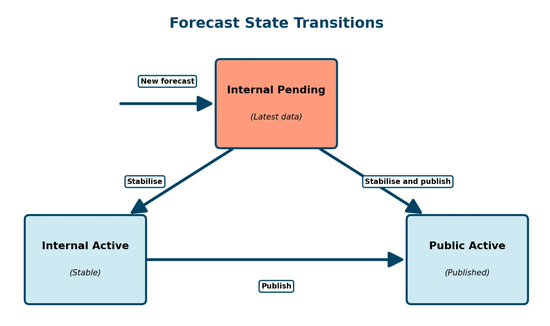
Description of all transitions from various forecast states to others
Understanding State Transitions
When your council gets its first forecast, we mark it Internal Pending. Only Champions and Sponsors can see it. Place Info and your council work together to create assumptions, set up users, and refine data. During this phase, we keep updating your forecast with the latest data.
Once your council approves the forecast, Place Info sets it to Internal Active. More people in your council can now use the data. The numbers are locked and stable. We stop automatic updates to this forecast, so everyone uses consistent figures for planning.
Once you have an Internal Active forecast, we create an Internal Pending forecast as soon as new data becomes available and automatically update it regularly.
If your council wants to share its work, Place Info sets the forecast to Public Active. Anyone can access the forecast without a login, and you can link to it on your website. The numbers stay stable.
That's the typical flow: Pending (work on it) → Internal Active (council uses it) → Public Active (share with community).
For Sponsors: Managing Team Roles
As a Sponsor, you can manage your team's roles from the User Access page (Settings → User Access). Click the "Change role" button next to a user's name to promote them to Champion or Sponsor or demote them to Forecast User.
For security reasons, only Place Info can create or modify Sponsor roles. If you'd like to introduce a new Sponsor or update an existing one, please get in touch with Place Info — we'll take care of it for you.
For Sponsors: Managing Forecast States
You control when forecasts go live. Move them from Pending to Active when ready, or switch between Internal and Public access. Just let Place Info know what state changes you need — we'll handle the transitions for you.