
Compare Small Areas
Overview
Compare Small Areas mode lets you view demographic trends side-by-side across all small areas within a forecast. Instead of seeing one aggregate line, each small area gets its own line or shape, so you can spot diverging trends at a glance.
Compare Small Areas mode is available for all data.
Switching to Compare Mode
Click the Focus button (which shows the current mode, e.g., "Focus: Single Area") to open a dropdown with two options:
- Single Area — standard view showing aggregate data for the whole forecast area
- Compare Small Areas — side-by-side view with one line or shape per small area
The currently active mode is highlighted in the dropdown. Selecting "Compare Small Areas" navigates to the comparison page for the current data domain.
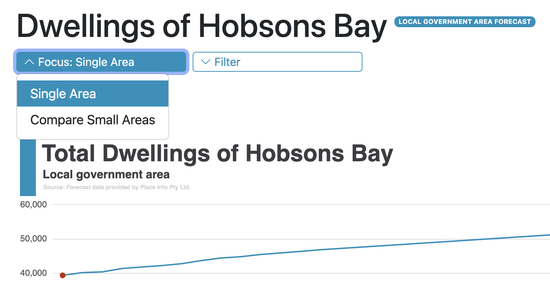
View focus dropdown — "Single Area" is active, "Compare Small Areas" is available
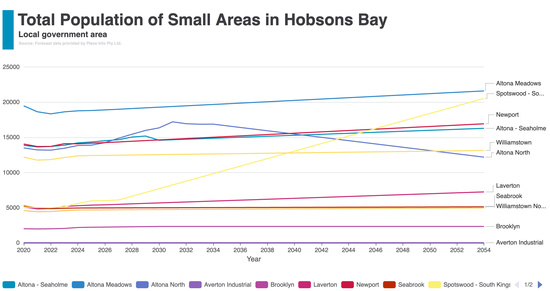
Total chart for an LGA forecast — each small area in a distinct colour, legend entries clickable
Total Chart
The total chart shows a trend line for each small area over the projection years. Each area is assigned a distinct colour, and area names appear in the legend on the right.
Click any legend entry to show or hide that area's line — a quick way to focus on a specific subset without leaving the page.
Hover over the chart to see values for all areas at a given year. Use the download icon to save the chart as an image.
Total Chart on a Small Area Forecast
When viewing a small area forecast, the total chart changes. The currently selected small area's trend appears as a bold dark blue line, while all other small areas are shown as light blue lines in the background.
The background lines give context — you can see at a glance whether the selected area is growing faster or slower than the rest. To bring another area into focus, select a different small area forecast from the small area selector in the main navigation bar.
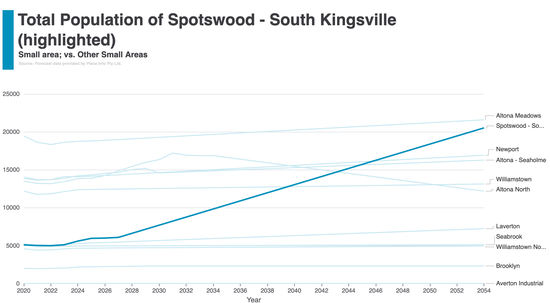
Total chart for a small area forecast — selected area in dark blue, all others in light blue
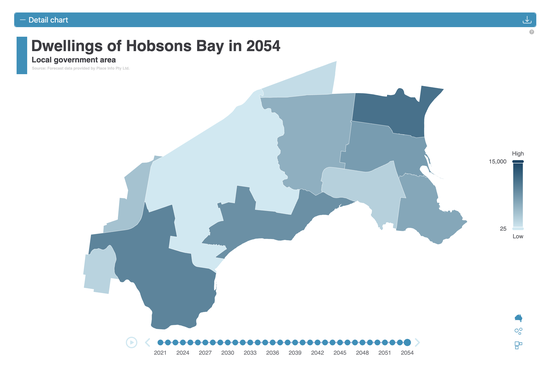
Detail chart — choropleth map view showing value intensity by area
Detail Chart
The detail chart shows the spatial distribution of values for a selected year. Three views are available, switchable via the toolbar icons in the bottom-right corner of the chart:
- Choropleth map — areas shaded by value intensity on a geographic base map. Darker shading indicates higher values.
- Dorling cartogram — circular bubbles scaled by value, positioned approximately by geography.
- Demers cartogram — square tiles scaled by value, arranged to minimise overlap while preserving rough geographic positioning.
A legend on the right shows the value scale. Use the timeline at the bottom to step through different years.
Choosing a Cartogram View
Both cartogram views retain geographic positioning. If a small area is in the north of the forecast, its circle or square will also appear in the north. The shapes are scaled by demographic value but not moved across the map, so spatial relationships between areas are preserved.
The Dorling cartogram uses circles scaled by value. Smaller areas that are hard to see on the choropleth map become more visible when their bubble size reflects their demographic weight.
The Demers cartogram uses squares arranged to minimise overlap. It is useful when many small areas are clustered together, as the non-overlapping layout makes individual values easier to read.
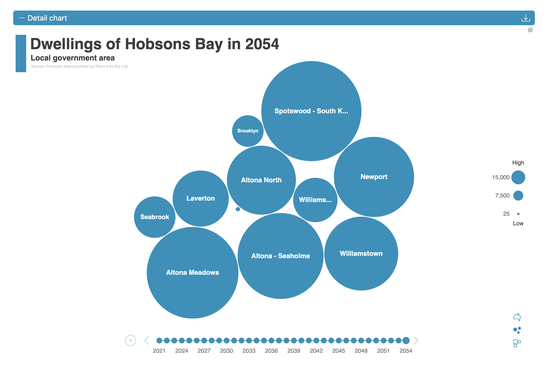
Dorling cartogram — circular bubbles sized by value, positioned geographically

Demers cartogram — square tiles sized by value, arranged to minimise overlap
Choropleth or Cartogram?
The choropleth map and cartograms serve different analytical purposes, so the choice depends on what you want to understand.
The choropleth map preserves the actual geographic shape and size of each area. Use it when location matters — for example, to see whether high-growth areas form a contiguous cluster, or whether values differ between neighbouring small areas.
Cartograms rescale areas by their demographic value rather than their physical footprint. This makes areas with large demographic weight visually prominent, even if they are physically small on the map. Use a cartogram when you want to compare values across areas without small areas getting lost due to their size.
The choice between Dorling (circles) and Demers (squares) is largely a matter of taste — both show the same information with the same geographic positioning. Circles tend to look cleaner when areas vary widely in size; squares pack more tightly and can be easier to read when many areas have similar values.

"Link charts" checkbox — synchronises hover interactions between total and detail charts
Linking Charts
The link charts checkbox (between the total and detail charts) synchronises the two charts when enabled:
- Hovering a year in the total chart updates the detail chart to show that year's distribution.
- Hovering an area in the detail chart highlights the corresponding line in the total chart.
This makes it easy to trace how a spatial pattern at a given year corresponds to the long-term trend for each area.
Selecting Small Areas to Compare
Open the Filter panel to find the Small Areas section. By default, All is selected and every small area is included in both charts.
Select Specific to choose a subset:
- Click any area on the interactive map to toggle it.
- Use the button grid to toggle individual areas, or click All / None for bulk selection.
- The selection count is shown (e.g., "3/11 selected").
Tick Keep filters across pages to preserve your Small Areas selection as you navigate between comparison pages.
Read more about filters here.
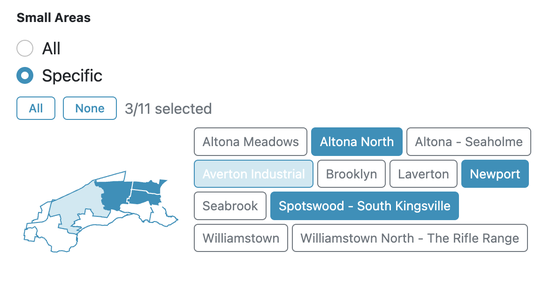
Filter panel — Small Areas section with interactive map and area button grid